Material Pro Design

One of the new themes that was included in WorkWithPlus 12 is the Material Pro Design.

This theme was created following the latest Material Desing Guidelines. 

This new theme together with our Startup Wizard provides the user the possibility to create custom Material Themes. In this way you will be able to customize your designs and create unique applications with excellent UI and UX. 

To make use of this theme you need to go to Tools -> WorkWithPlus -> Design System Wizard.
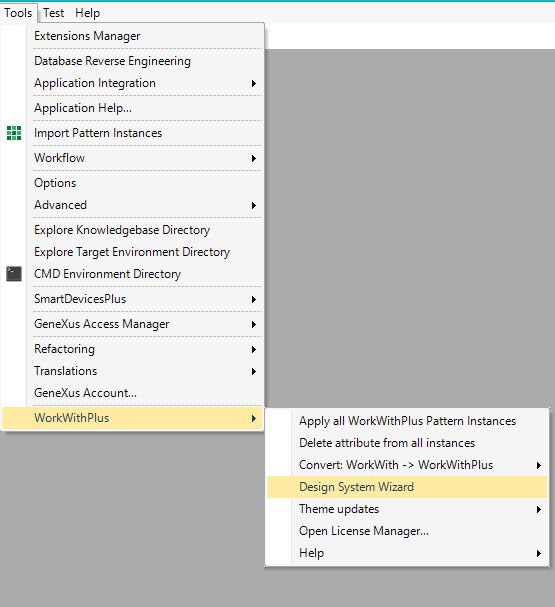
GeneXus IDE Tools menu open, with the WorkWithPlus submenu expanded showing items Apply all WorkWithPlus Pattern Instances, Delete attribute from all instances, Convert: WorkWith -> WorkWithPlus, Design System Wizard (highlighted), Theme updates, Open License Manager, and Help.

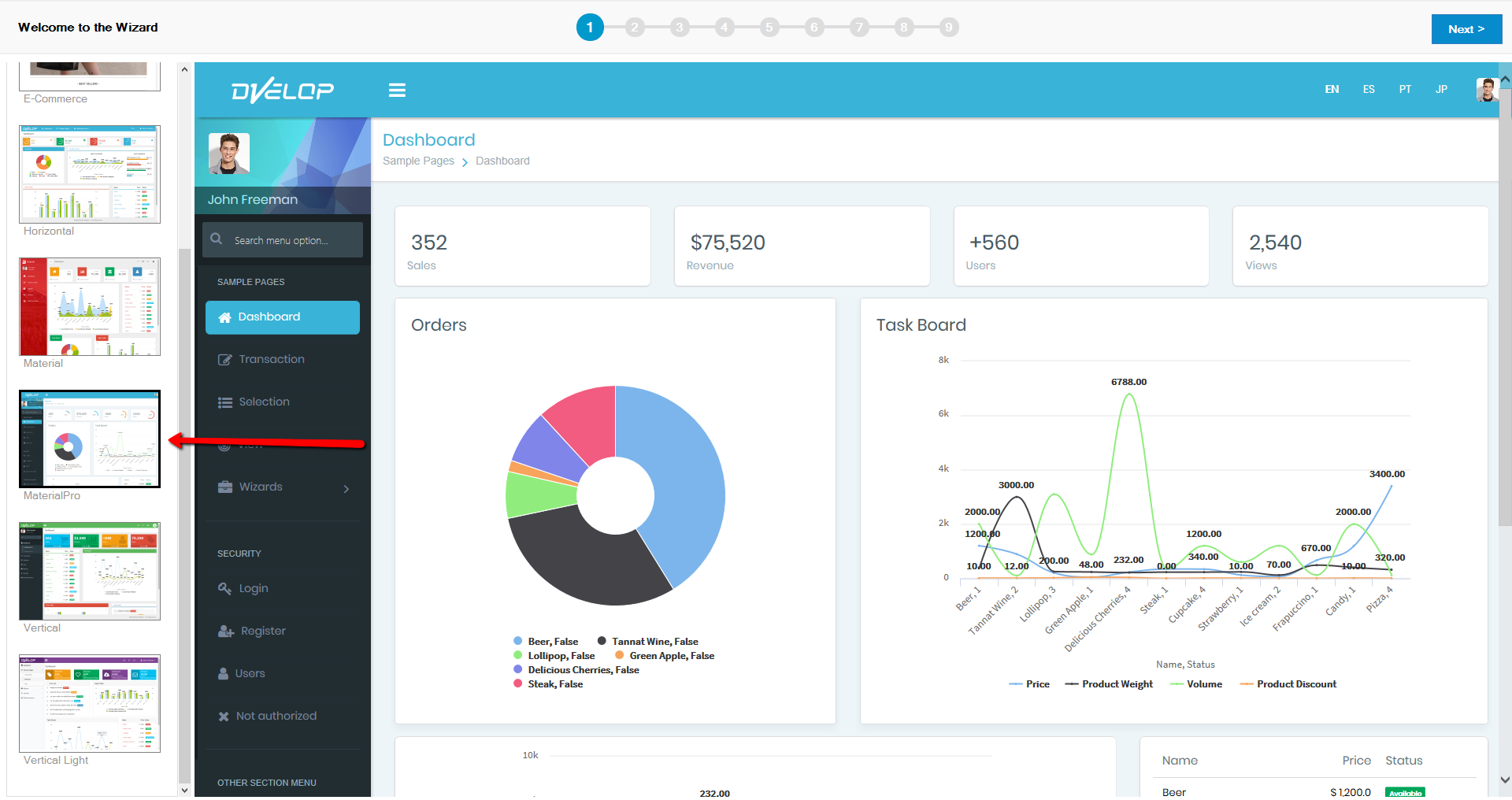
You need to select 'MaterialPro':

Step 1 of the Design System Wizard, "Welcome to the Wizard", shows a gallery of theme thumbnails (E-Commerce, Horizontal, Material, MaterialPro, Vertical, Vertical Light) on the left, with MaterialPro highlighted by a red arrow, and a live preview of the MaterialPro dashboard on the right showing sales/revenue/users/views KPI cards, an Orders donut chart, and a Task Board line chart.

In the following steps of the Startup Wizard you will be able to customize differents aspects of your application. You can read more about that in the following link: Design System Wizard

With this theme you will have different designs:
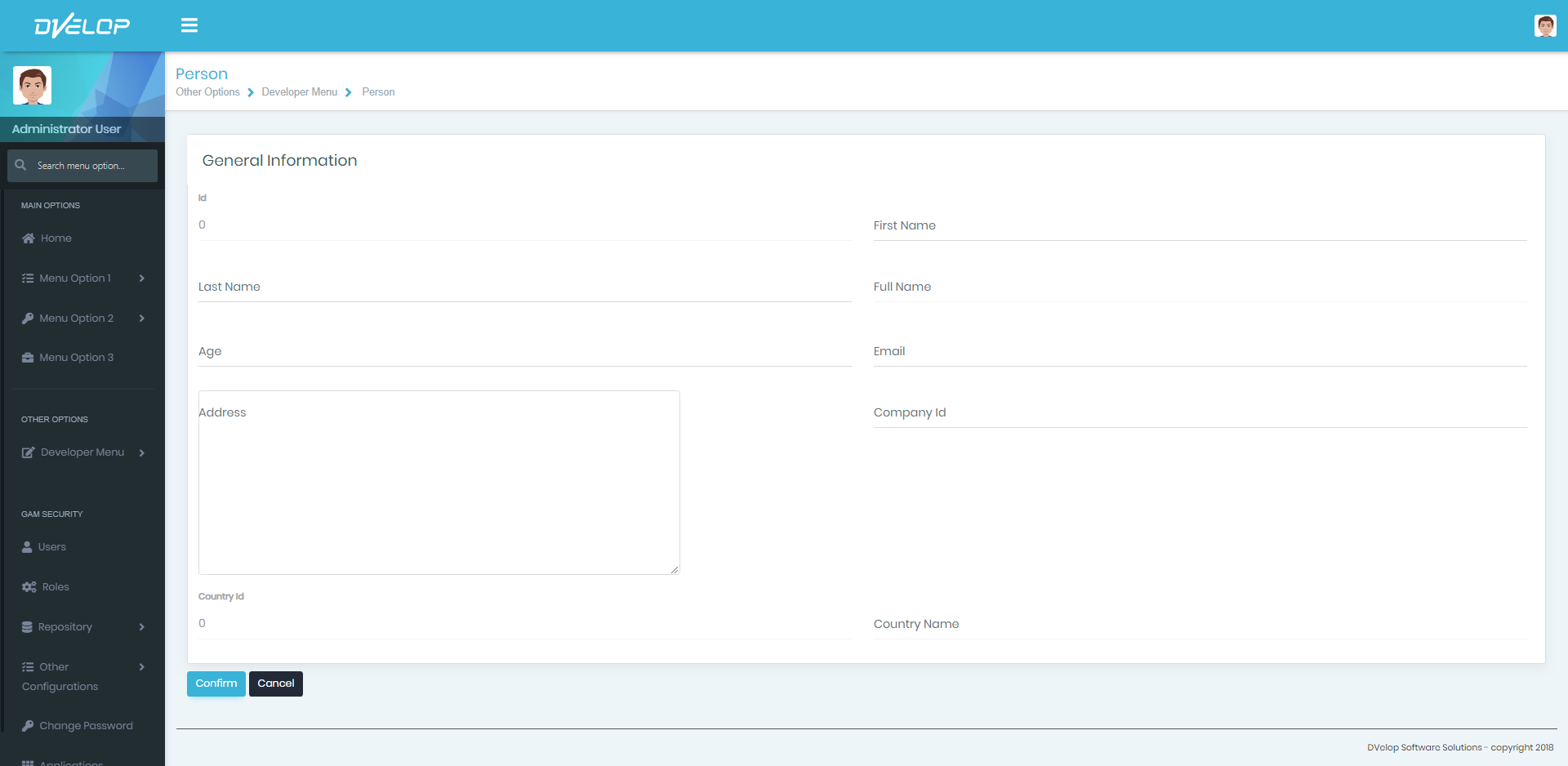
Transaction:

A generated Person web transaction form (Prompt/insert view) shows a General Information section with Id, First Name, Last Name, Full Name, Age, Email, Address, Company Id, and Country Name fields, plus Confirm and Cancel buttons, in the DVelop sample site with a dark sidebar menu.

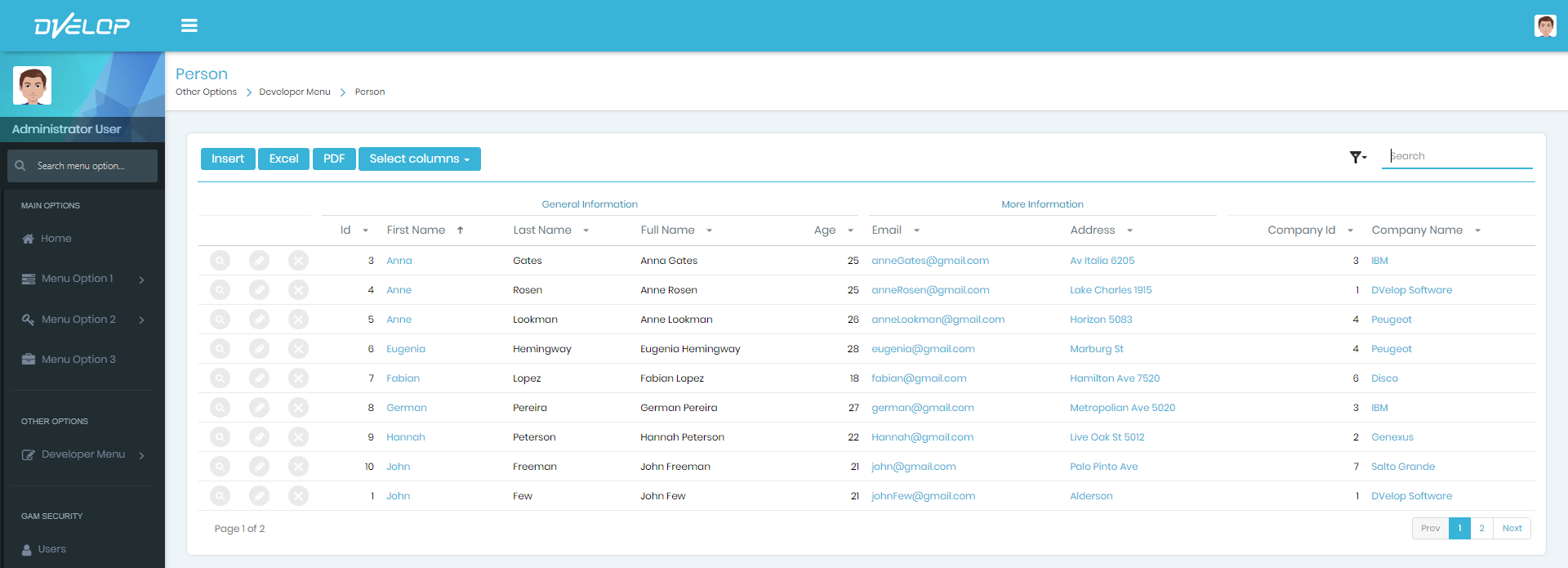
Selection:

The generated Person work-with grid view lists people with columns Id, First Name, Last Name, Full Name, Age, Email, Address, Company Id, and Company Name, above Insert, Excel, PDF, and Select columns buttons and a search box, with pagination controls at the bottom.

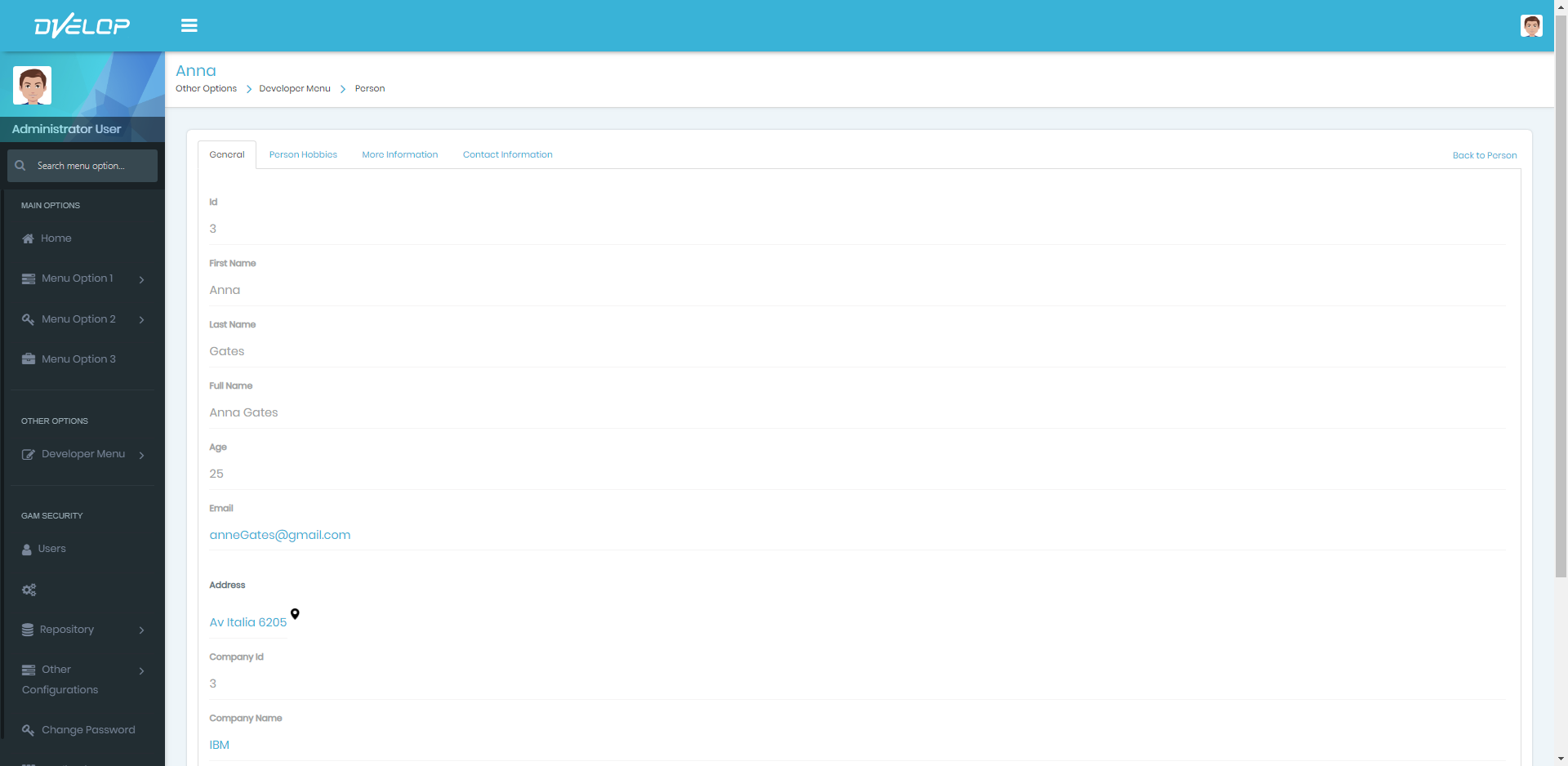
View:

The generated Person view/display page for record "Anna" shows tabs General, Person Hobbies, More Information, and Contact Information, with the General tab displaying Id, First Name, Last Name, Full Name, Age, Email, Address, Company Id, and Company Name values.