With the new version you can filter the records that are displayed in some 'DVelop Combo' associated to a dynamic attribute or variable in a simple way.
Example: insert one Company and set the country and city. The city field needs to display only cities from the selected country.
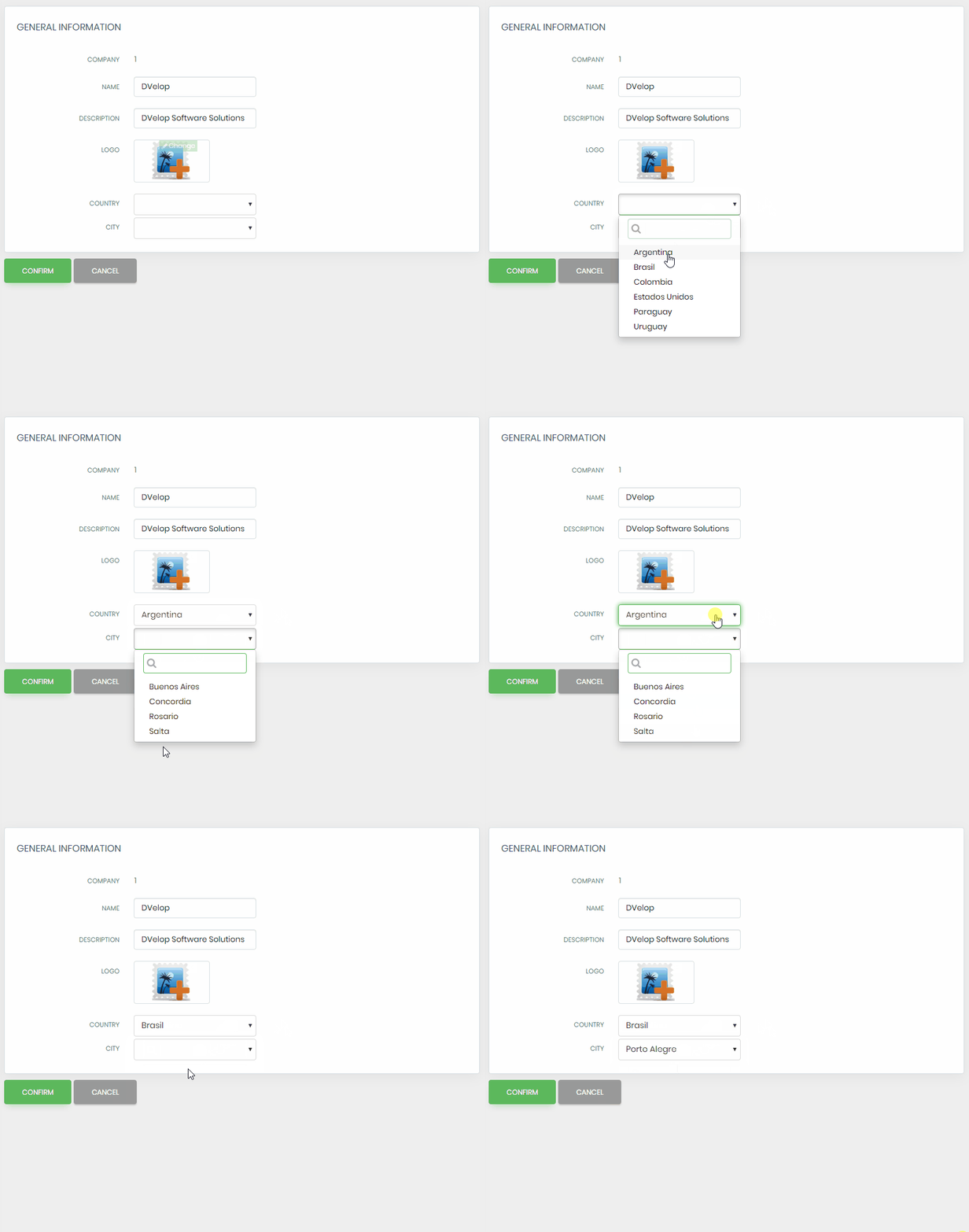
In order to do this:
- The control has to have the property 'Load Data Dynamically' as True
- A new property named 'Conditions dynamic atts or vars' will appear. You need to select the attributes/variables that will have a condition associated to the control. WorkWithPlus will show you the name of the variable that you have to mention in the conditions
- In the property 'Conditions (dynamic controls)' you need to add the conditions associated to the control, mentioning the variable that WorkWithPlus showed you
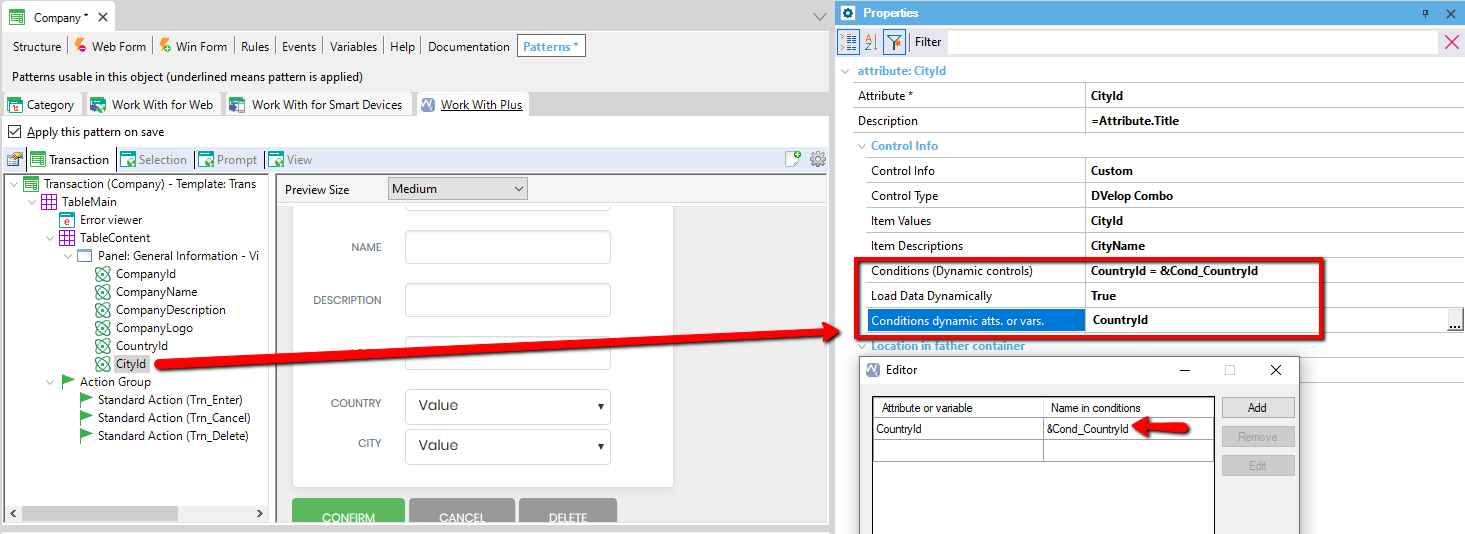
In the Example shown before:
- CityId is the control with 'DVelop Combo' (DVelop Combo)
- The dynamic attribute that is needed to use in the conditions is 'CountryId', so the variable to use in the conditions is '&Cond_CountryId'
- In the property 'Conditions (dynamic controls)', the condition added is
&Cond_CountryId = CountryId;
|