New Templates for View

New Templates for creating View objects were added. In these templates you will be able to display the related information of a table in different components, all visible at the same time, with tabs, or some visible and others in tabs.

Template :: General and Tabs
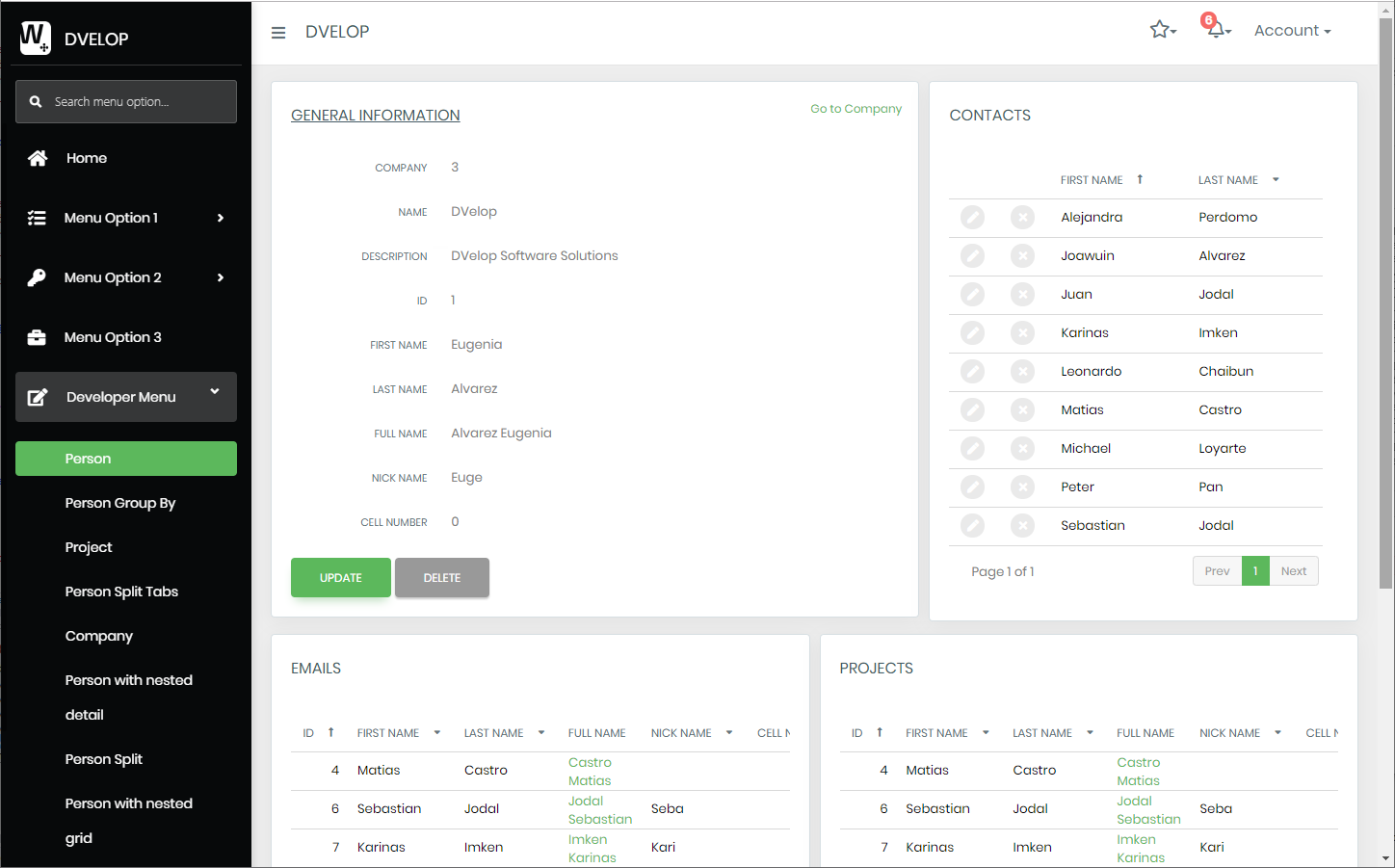
A generated WorkWithPlus web application named DVELOP shows a Company detail view with GENERAL INFORMATION (Company 3, Name DVelop, Description "DVelop Software Solutions") and Update/Delete buttons, followed by a Person grid with columns ID, First Name, Last Name, Full Name, Nick Name listing records like Matias Castro and Sebastian Jodal, under PERSON and PERSON SPLIT tabs. A left sidebar lists menu options including Home, Developer Menu, and Person.

Template :: Cards with General wide

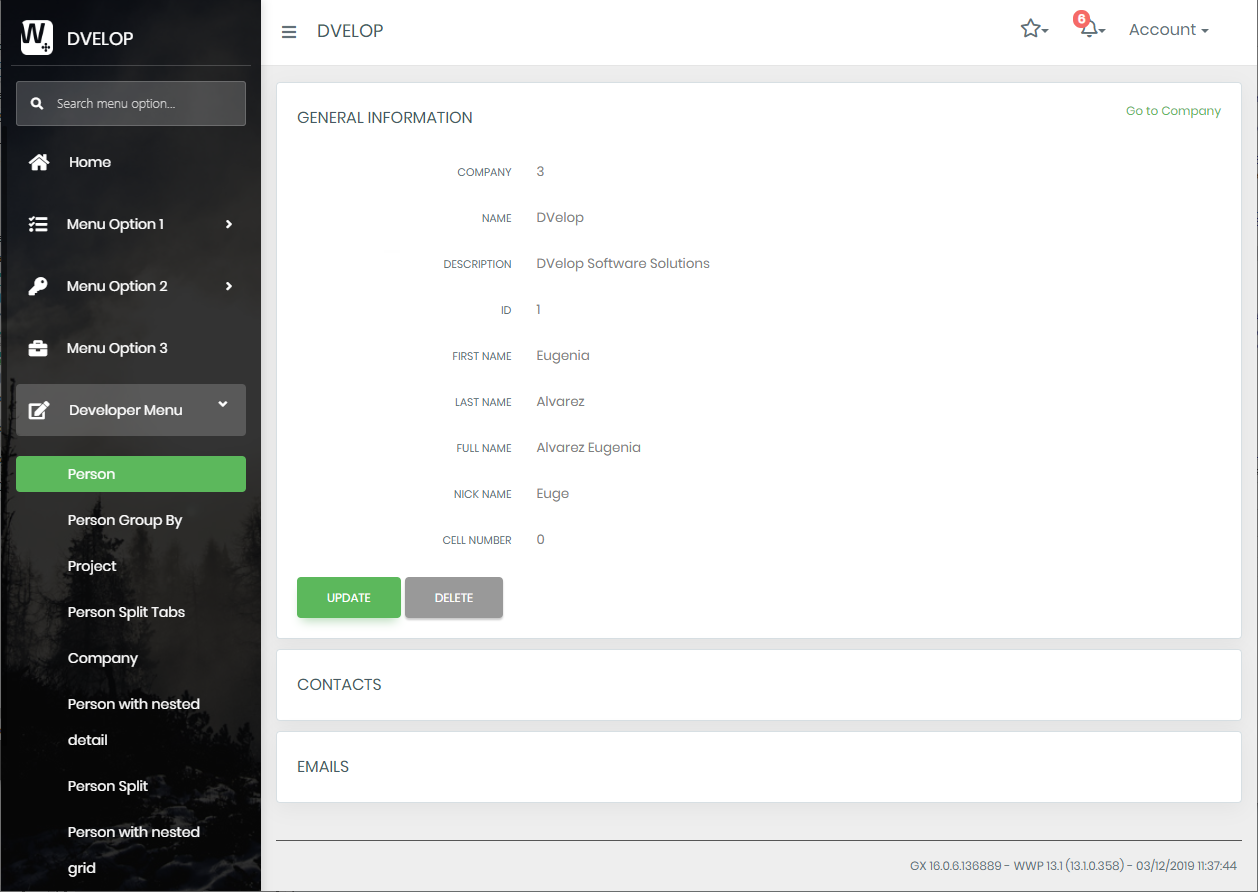
A generated WorkWithPlus web page shows GENERAL INFORMATION for Company 3 (DVelop) alongside a person's detail fields (ID 1, First Name Eugenia, Last Name Alvarez, Full Name "Alvarez Eugenia", Nick Name Euge, Cell Number 0) with Update and Delete buttons. A CONTACTS grid on the right lists names like Alejandra Perdomo and Joawuin Alvarez, with EMAILS and PROJECTS grids below.

Template :: Cards with General narrow
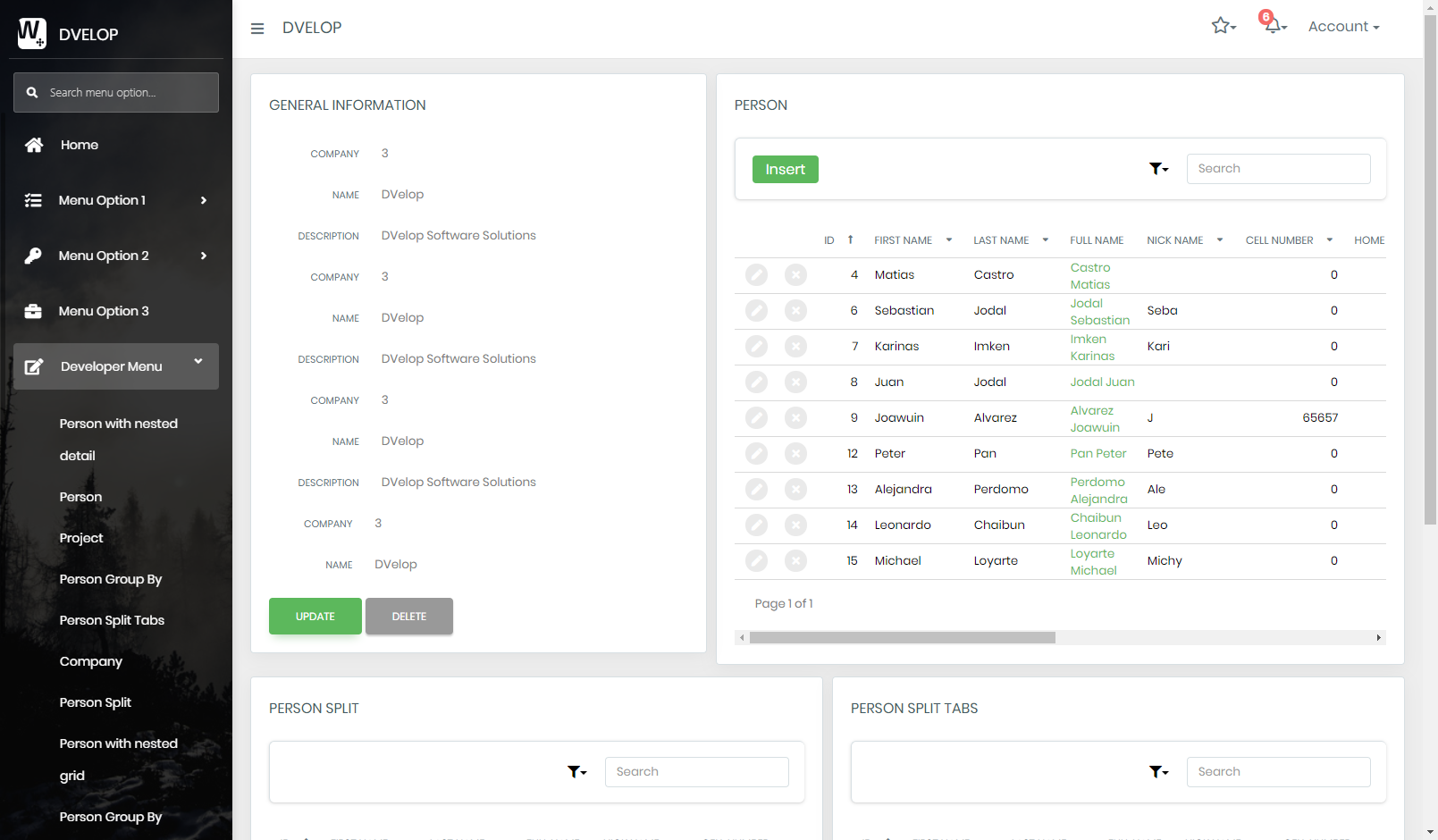
A generated WorkWithPlus web page repeats GENERAL INFORMATION for Company 3 (DVelop) three times on the left, and on the right shows a PERSON grid with an Insert button and columns ID, First Name, Last Name, Full Name, Nick Name, Cell Number, listing rows such as Matias Castro and Joawuin Alvarez. Below are PERSON SPLIT and PERSON SPLIT TABS panels with search boxes.

Template :: Expanded View

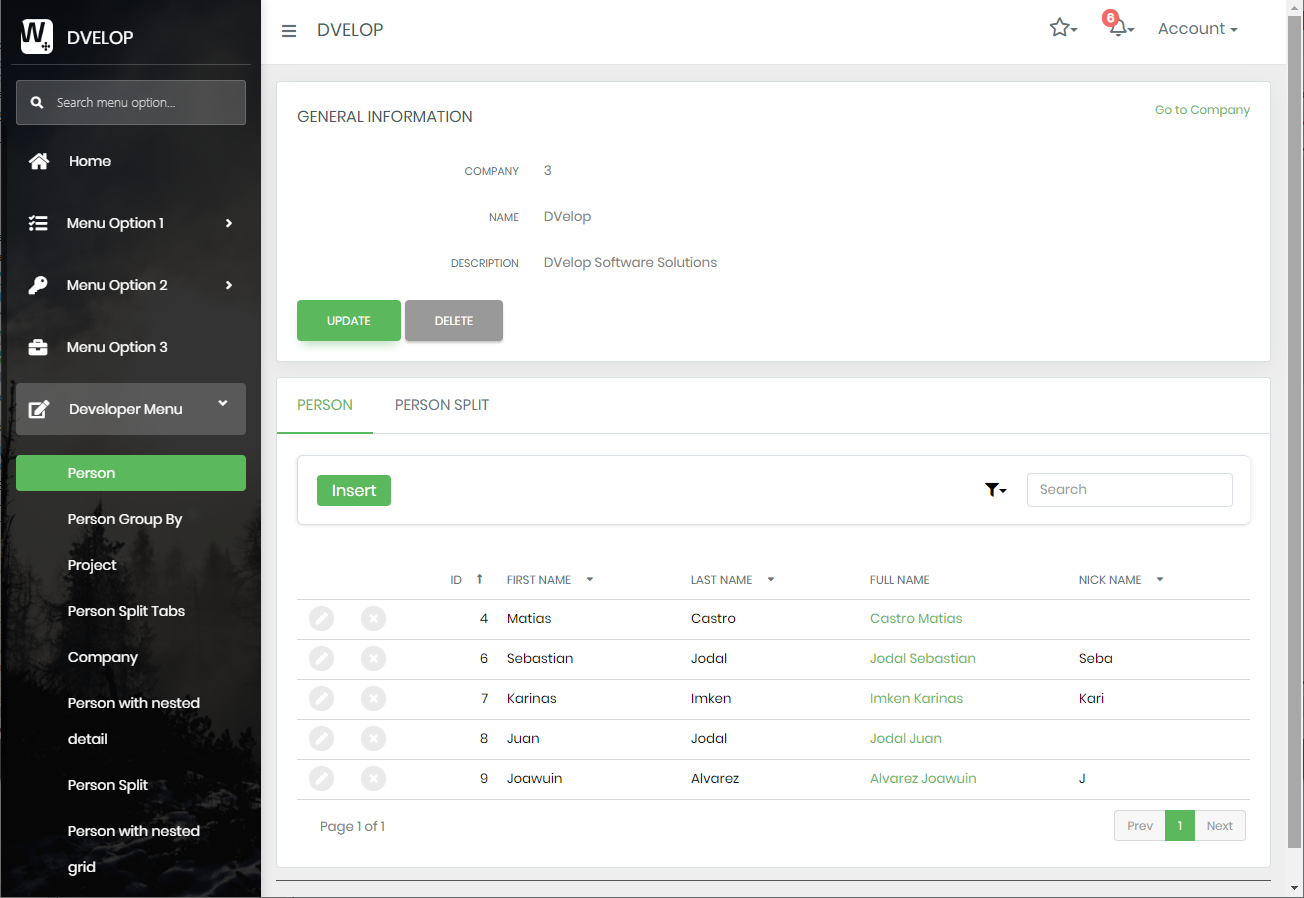
A generated WorkWithPlus web page shows GENERAL INFORMATION for Company 3 (DVelop) and person Eugenia Alvarez (Full Name "Alvarez Eugenia", Nick Name Euge, Cell Number 0) with Update and Delete buttons, plus collapsed CONTACTS and EMAILS panel headers below. A footer shows the GeneXus/WWP version string "GX 16.0.6.136889 - WWP 13.1 (13.1.0.358) - 03/12/2019 11:37:44".

In order to do this, a new Node named 'View Component' was added. This node has the property 'WC Name' and will display that WebComponent in the page, in the section of the form where the node is located. In the sample below, the View will display the general information at the top, and the other components in tabs at the bottom:
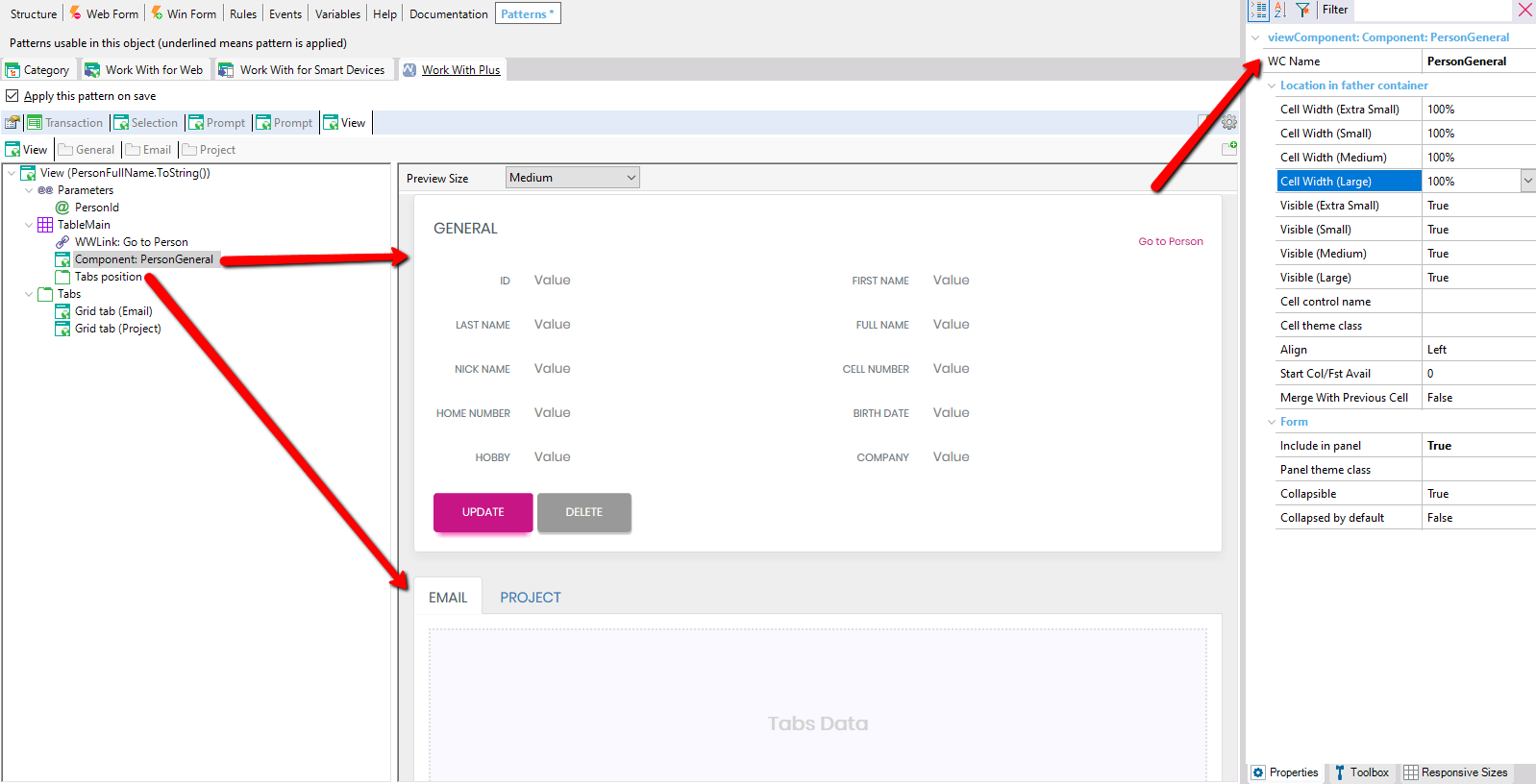
The GeneXus Patterns editor shows a transaction object's View node tree with 'Component: PersonGeneral' selected under TableMain, and a preview of the General view displaying ID, First Name, Last Name, Full Name, Nick Name, Cell Number, Home Number, Birth Date, Hobby, Company fields plus Update and Delete buttons and Email/Project tabs. Two red arrows connect the tree node and preview area to the Properties panel's 'Location in father container' section, showing Cell Width settings all at 100% and Visible flags True for Extra Small through Large.

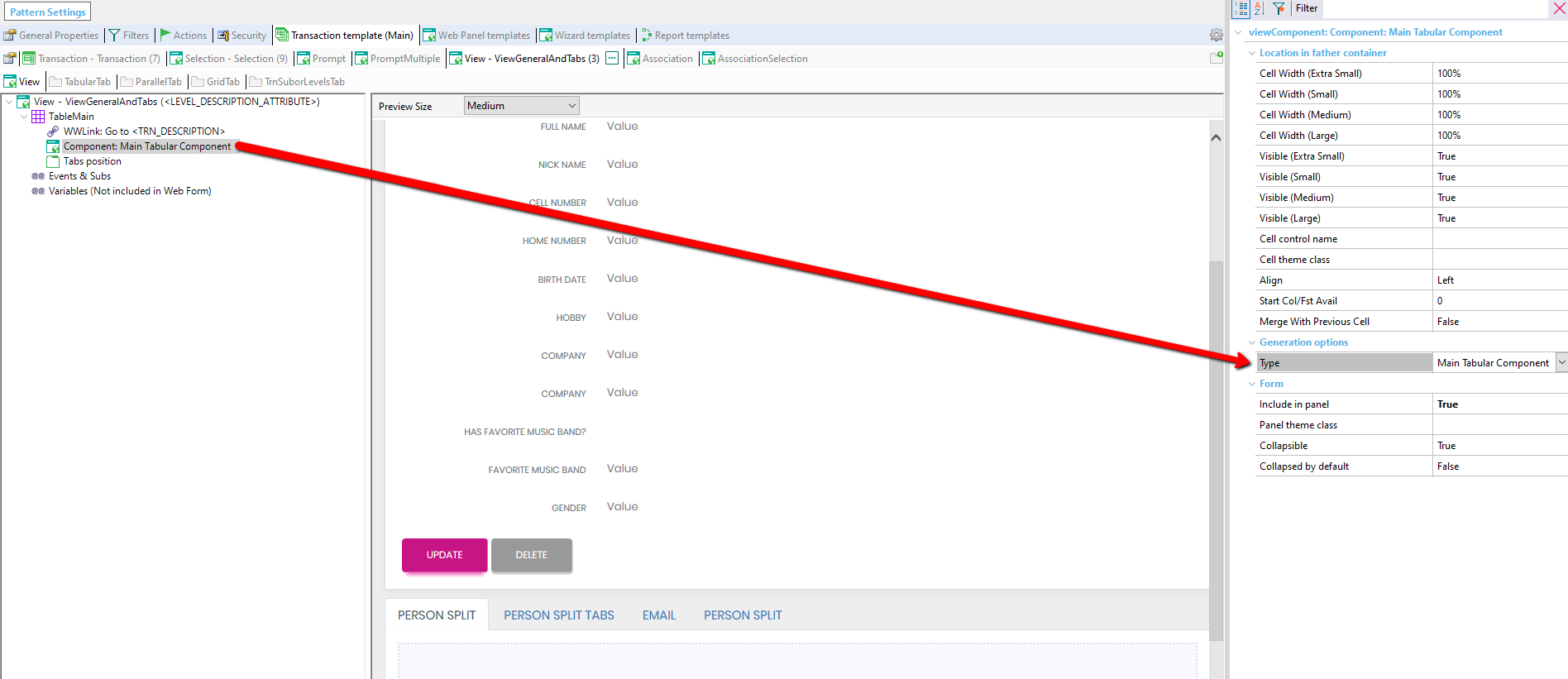
In WorkWithPlus Settings, in the definition of the Templates for View objects, the same node named 'View Component' was added. In this scenario, instead of the property 'WC Name', it contains a property 'Type' that will define which instantiated component will be set by default when selecting this template. The possible values for property 'Type' are:

  • Main Tabular Component: it will be replaced by the tabular associated to the plain information of the transaction (sample, the image displayed below)
  • Component: it will be replaced by any component (tabular or grid) of the generated associated to the transaction.
  • Tabular Component: it will be replaced by any tabular tab (plain information) of the ones generated associated to the transaction. WorkWithPlus creates automatically one tabular tab with the plain information of the grid and one tabular for each parallel transaction (when the property 'Generate tabs for parallel transaction' is true)
  • Grid Component: it will be replaced by any grid tab of the ones generated associated to the transaction. WorkWithPlus creates automatically one grid tab for each second level of the transaction and one grid tab for each transaction related 1-N with the transaction.
  • All remaining components: it will be replaced by all the other components that weren´t added in other 'View Component' nodes.
The Pattern Settings editor for a WorkWithPlus instance shows the ViewGeneralAndTabs tree with 'Component: Main Tabular Component' selected, alongside a preview listing Full Name, Nick Name, Cell Number, Home Number, Birth Date, Hobby, Company, Has Favorite Music Band?, Favorite Music Band, Gender fields and Update/Delete buttons with Person Split, Person Split Tabs, Email, and Person Split tabs below. A red arrow points to the Properties panel's Generation options, where Type is set to 'Main Tabular Component'.