Step 1 - Enable Security in WWPConfiguration

Open WWPConfiguration (WorkWithPlus Object) and make right click in Security Node, selecting "Change Security Type (Simple, Advanced or None):
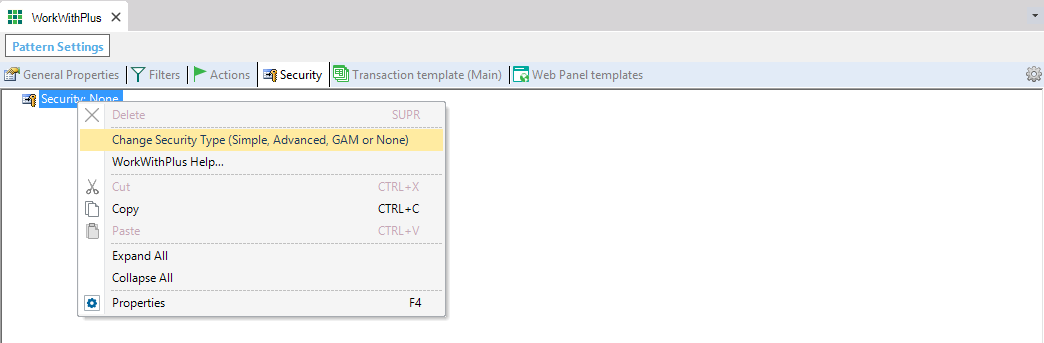
In the WorkWithPlus Pattern Settings editor, the Security tab tree shows "Security: None" selected, with a right-click context menu highlighting "Change Security Type (Simple, Advanced, GAM or None)" among Delete, WorkWithPlus Help, Cut, Copy, Paste, Expand All, Collapse All, and Properties.

Then select Advanced Security and press Next:
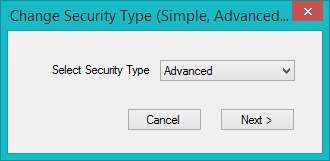
The "Change Security Type (Simple, Advanced...)" dialog shows a "Select Security Type" dropdown set to "Advanced", with Cancel and "Next >" buttons.

In order to enable advanced security there are some objects required, and these objects needs to be imported. You have three options:
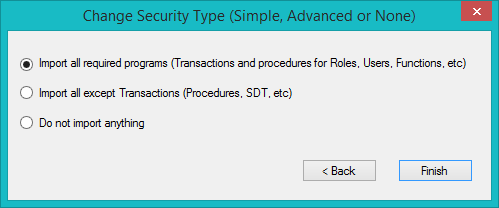
The "Change Security Type (Simple, Advanced or None)" dialog offers three radio options: "Import all required programs (Transactions and procedures for Roles, Users, Functions, etc)" (selected), "Import all except Transactions (Procedures, SDT, etc)", and "Do not import anything", with "< Back" and "Finish" buttons.

(Recommended) You could import all required programs, and these includes transactions and procedures for Roles, Users and Functionalities. If you select these option, the security structure will be created automatically and you will not have to do anything about it.

The second option is to import everything but transactions. This could be useful when the application (KB) already contains a security scheme and wants to adapt WorkWithPlus security services to the existing tables.

The third option is to not import anything. This could be useful in exceptional cases, when the application have already been enabled WorkWithPlus Advanced Security and then disabled, so that all the objects are already imported. This option is not recommended.

If you select the first option, the following message will appear:
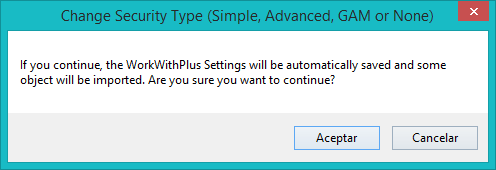
A confirmation dialog titled "Change Security Type (Simple, Advanced, GAM or None)" warns: "If you continue, the WorkWithPlus Settings will be automatically saved and some object will be imported. Are you sure you want to continue?" with "Aceptar" and "Cancelar" buttons.

After pressing "Confirm", all the objects will be imported inside a "Security" folder. All these objects starts with the prefix "Sec":
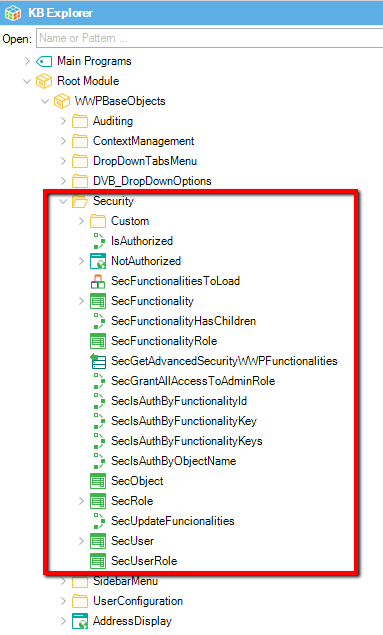
The KB Explorer tree, expanded under Root Module > WWPBaseObjects, shows the Security folder highlighted with a red box containing objects Custom, IsAuthorized, NotAuthorized, SecFunctionalitiesToLoad, SecFunctionality, SecFunctionalityHasChildren, SecFunctionalityRole, SecGetAdvancedSecurityWWPFunctionalities, SecGrantAllAccessToAdminRole, SecIsAuthByFunctionalityId, SecIsAuthByFunctionalityKey, SecIsAuthByFunctionalityKeys, SecIsAuthByObjectName, SecObject, SecRole, SecUpdateFuncionalities, SecUser, SecUserRole, alongside sibling folders SidebarMenu, UserConfiguration, and object AddressDisplay.